
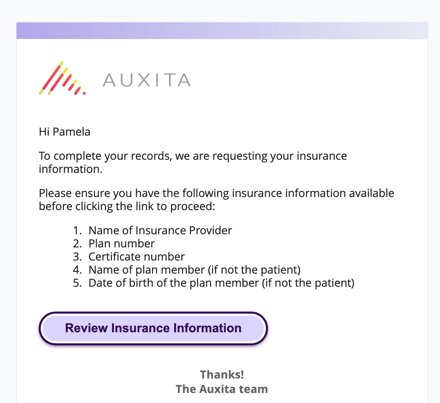
Insurance requests allow you to review and manage the coverage information stored in your profile.
When you open a request, you are guided to the Insurance Details step, where all saved plans are displayed. From there, you can confirm, update, add, or remove plans within the allowed limits to ensure your information remains accurate.
-
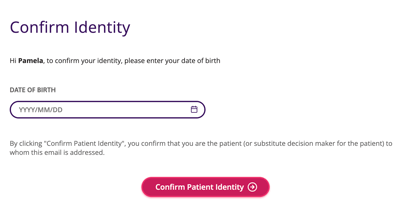
Begin by confirming your identity by entering your date of birth and selecting Confirm Patient Identity.
-
Review the Confirm Your Insurance Information section to ensure your coverage details are up to date.
-
Under Primary Insurance Plan, select your insurer from the dropdown and enter or review the Plan Number, Plan Sponsor, and Certificate fields.
- Select the Plan Member from the dropdown.
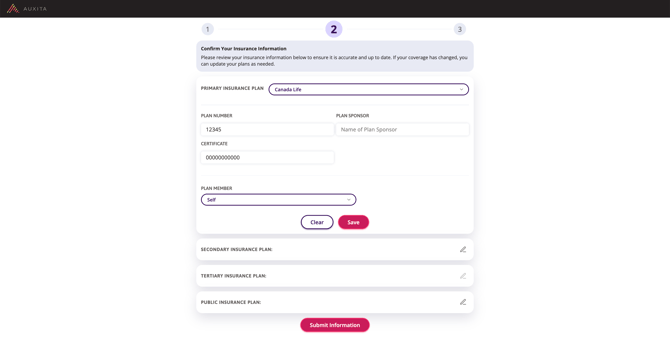
- Click Save to apply any updates, or select Clear to reset the fields.
-
If applicable, expand the Secondary Insurance Plan, Tertiary Insurance Plan, and Public Insurance Plan sections and use the pencil icon to enter additional details.
-
Once all information has been reviewed, click Submit Information.
 TIP You can add up to three private insurance plans and one public insurance plan.
 NOTE Insurance requests display the plans already saved to your profile. If you have reached the plan limit, you can still update or confirm your existing coverage if your information has changed.