
The Reporting Date determines which month and year a completed decision is counted towards.
- By default, the Reporting Date matches the date the form is completed unless changed.
- Authorized users can adjust this date when completing a form or after it has been completed.
Steps to Set the Reporting Date When Completing an Additional Form
 NOTE For more information on how to complete an Additional form, check out the following article: How to Complete an Additional Form
- Go to Overview and open the Review tab or peruse the Status table.
- Locate the request you are looking to complete.
- Select Complete to finalize the form.
- In the Update Status window:
- Select the final decision (e.g., Approved or Rejected).
- Review the Reporting Date.
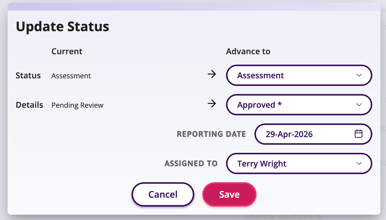
- If needed, update the Reporting Date to reflect the correct reporting period.
- Add any required comments.
- Select Save.
NOTE Once the form is completed, the decision is counted toward the selected Reporting Date in statistics.
Modify the Reporting Date After a Form Is Completed
If a completed form needs to be counted in a different reporting period, you can update the Reporting Date without changing the decision.
- Locate the completed Additional Form in the status table or in the summary tab in the Overview section.
- Select the ellipses.
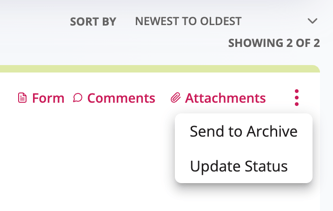
- Choose Update Status.
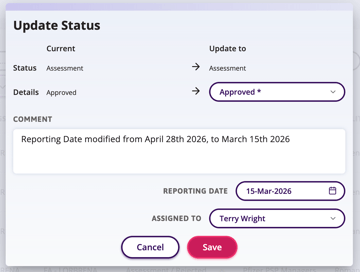
- In the dialogue:
- Confirm the same details or modify.
- Enter the new Reporting Date.
- Add required comments.
- Select Save.
NOTE When the Reporting Date is changed:
- The decision is removed from the original reporting period
- The decision is added to the newly selected period
- Statistics are recalculated immediately