
For the steps on how to initiate an additional form, please review the following:
How to Initiate an Additional Form
This workflow outlines the essential steps for handling forms after they have been initiated, ensuring accurate updates, clear communication, and timely follow-up on additional information requests.
Steps after a form is initiated
While reviewing an Additional Form, a team member may determine that more information or clarification is needed before the form can move forward.
 NOTE Comments can be added directly on the form, and in some cases you may be prompted to add one when updating the form’s status.
More information on using comments can be found here: How to use the Additional Forms Comments Section
-
Click Save & Close.

-
In the Update Status window:
-
Click into the Details dropdown under the Advance to heading and select the appropriate option, as needed.
-
Select the individual or user group in the Assigned To field that should be notified about this update.
-
Add any necessary comments (if required).
-
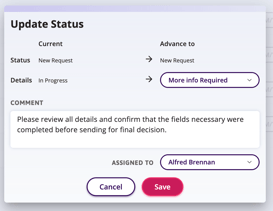
 NOTE Once assigned, the form shows up on the individual's Home Dashboard, and a notification is sent by email or SMS based on their notification settings.
Review and Update the Form
-
The assigned individual can then review the comment(s), gather the required information, and update the form with missing details or attachments.
-
Once updates are made or the form is complete, click Save & Close again or Advance to the next stage.

-
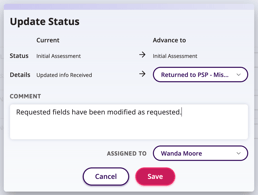
In the Update Status window:
- Under the Advance to heading, select the appropriate options for Status and/or Details, as needed. (If the form is advancing to the next stage, you may also need to select the Details under the Current heading.)
- Select the individual or user group in the Assigned To field to return the form to the requester or next reviewer if necessary.
-
Add any necessary comments confirming that the additional information has been added or a summary of what updates were made (if required).
 TIP Include clear, concise comments at each stage to ensure visibility into the form’s progress and maintain an accurate, auditable workflow history in Auxita.