
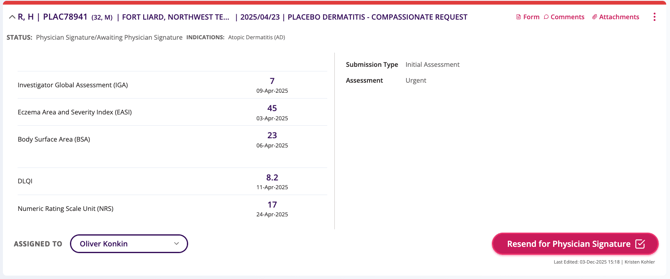
Summary Cards display an overview of details that were completed on the digital form.
 TIP You can always open and view the entire form by clicking on the Form button in the top right corner of the tile. Here, you can also see/view the Comments and Attachments on this form.

The entire card is collapsible by clicking the arrow button on the top left-hand corner of the card.

Hovering over any date field displays the type of date.

The colour at the top of the summary card indicates red if an urgent review is required or grey if a standard review is required.

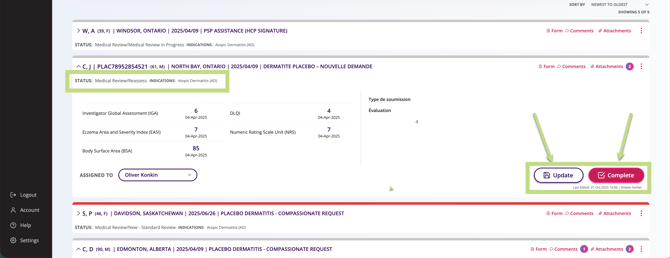
You can use the action buttons along the bottom of the card to change the Assigned To user or to change the state of the form.
 NOTE
NOTE
Each Summary Card includes three action buttons: Update, Advance, and Complete.
- Update keeps the request in the same stage. It opens the Update Status window so you can add details or make changes without moving it forward.
- Advance moves the request to the next stage in the workflow.
- Complete lets you choose your decision and finish the request.
The white button updates the current status within the current stage, and the pink button completes the stage and moves the request to the next workflow stage.
Review
The Review tab shows all in-progress forms, based on the filters selected.
Summary
The Summary tab only shows completed forms, based on the filters selected.