Deleting a form leaves no record on the patient’s profile. This option can be used when, for example, a form was accidentally created as a duplicate.
Steps for Deleting a Request
-
Open the patient's profile.
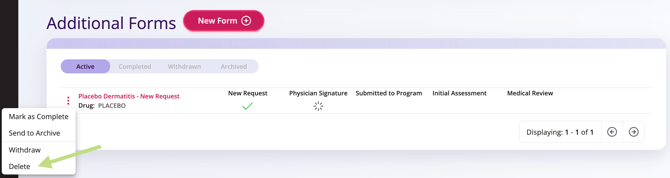
- In the Additional Forms tile, click the ellipses.
- Select Delete from the menu.
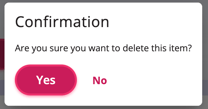
- A prompt will appear to confirm the decision to delete.
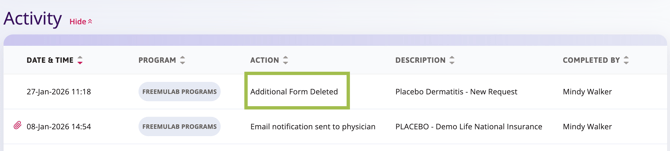
 NOTE Once the form is deleted, you can still verify that this action occurred by checking the Activity section of the patient’s profile.
Archiving the form preserves it in its current state and moves it to the Archived tab, where it can no longer be modified. This option is useful if you want to keep a record of a form that was initiated but is no longer required.
Steps for Archiving a Request
-
Open the Patient's Profile.
-
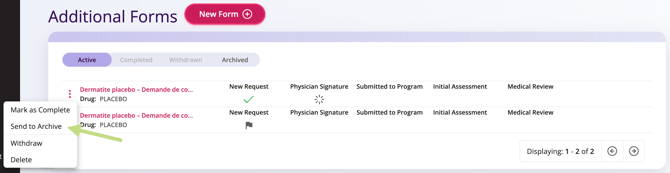
In the Additional Forms tile, click the elipses.
-
Select Send to Archive from the menu.
- Once archived, you can toggle the status bar to locate it.
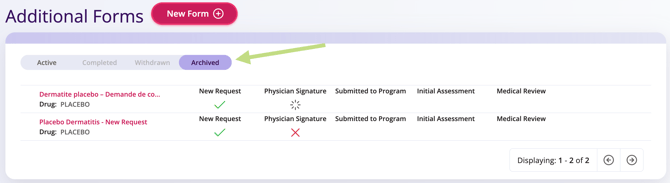
 TIP Even after archiving, the form remains accessible for review by clicking the pink form name.
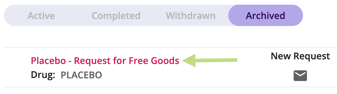
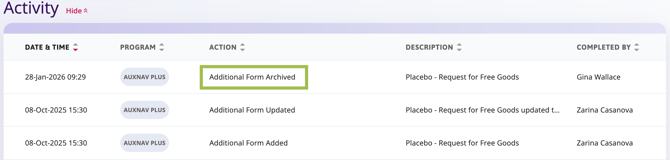
NOTE Once the form is Archived, you can still verify that this action occurred by checking the Activity section of the patient’s profile.