
For more information on how to open and view a submitted entry, please refer to this article: Open or View a Submitted Enrolment
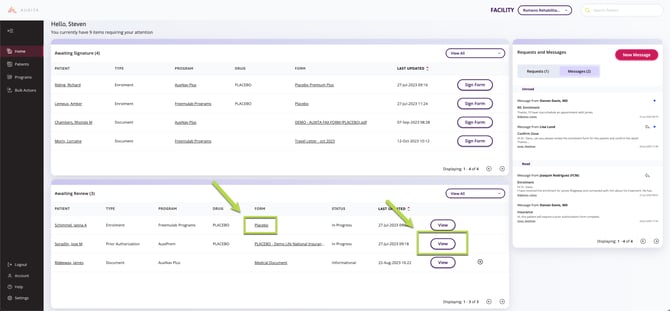
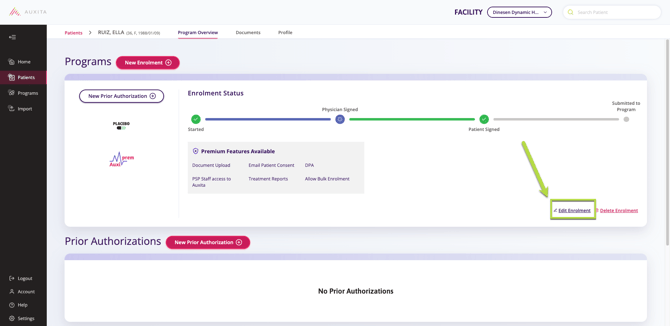
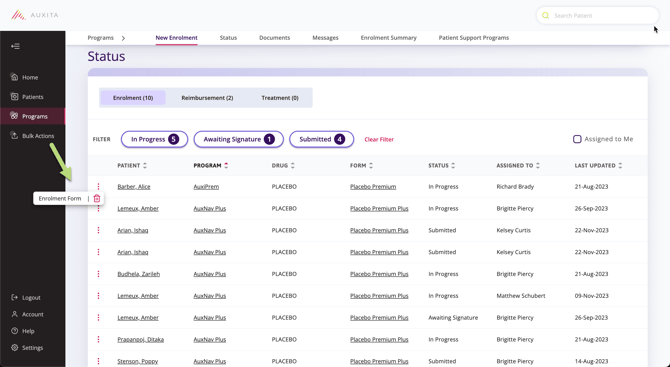
Start by opening the enrolment form from the Homes Dashboard, Patients Section or the Programs Section.
Home Dashboard
Patients Section
Programs Section
Assign the enrolment to another user by selecting their name from the list in the Assigned To dropdown in the bottom left corner.
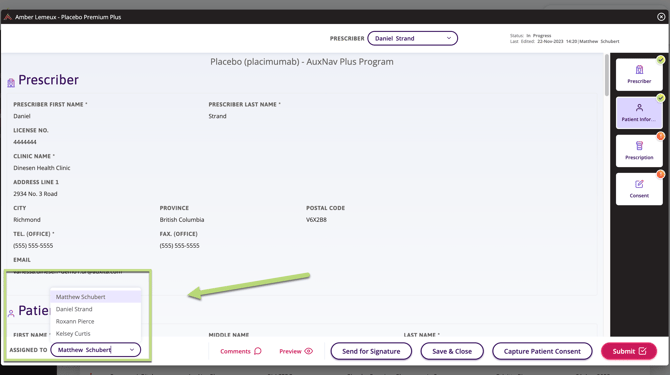
 NOTE The assigned user must be part of the facility and have access to the associated program to be able to action the enrolment.
Click Save & Close to complete the assignment of the enrolment form to the user listed in Assigned To.
 TIP Enrolments can be initiated by Clinic staff, but can only be signed by the Health Care Provider.
Because of this, Clinic Staff should select the Prescriber from the top right-hand dropdown menu and click Send for Physician Signature to assign the enrolment to the prescribing physician. You do not need to use the Assign To dropdown when clicking Send for Signature; Auxita will automatically assign the enrolment to the selected Prescriber.
