---
title: How to use the Fax Me a Copy Feature
description: Prescribers can receive a copy of a submitted enrolment, prior authorization, or prescription form directly to their fax number upon submission of the form in Auxita.
---
[Skip to content](https://help.auxita.com/how-to-use-the-fax-back-to-me-feature#main-content)
- [English - Canada](https://help.auxita.com/how-to-use-the-fax-back-to-me-feature)
- [Français - Canada](https://help.auxita.com/fr-ca/fr-ca/comment-utiliser-la-fonction-faxez-moi-une-copie)
English - Canada
Show submenu for translations
[Contact Support](https://help.auxita.com/kb-tickets/new?hsLang=en-ca)
[](https://help.auxita.com/?hsLang=en-ca)
- [🖥️ Log into Auxita](https://my.auxita.com/)
- [▶️ Watch video tutorials](https://help.auxita.com/onboarding-videos)
- [🌐 About Auxita](https://auxita.com/)
Open main navigation
Close main navigation
- [🖥️ Log into Auxita](https://my.auxita.com/)
- [▶️ Watch video tutorials](https://help.auxita.com/onboarding-videos)
- [🌐 About Auxita](https://auxita.com/)
- - [English - Canada](https://help.auxita.com/how-to-use-the-fax-back-to-me-feature)
- [Français - Canada](https://help.auxita.com/fr-ca/fr-ca/comment-utiliser-la-fonction-faxez-moi-une-copie)
English - Canada
Show submenu for translations
- [Contact Support](https://help.auxita.com/kb-tickets/new)
- [What's new?](https://release.auxita.com/)
[What's new?](https://release.auxita.com/?hsLang=en-ca)
We're here to help you
- There are no suggestions because the search field is empty.
1. [Auxita Help](https://help.auxita.com/?hsLang=en-ca)
2. [Healthcare Providers & Prescribers](https://help.auxita.com/healthcare-providers-prescribers?hsLang=en-ca)
3. [General](https://help.auxita.com/healthcare-providers-prescribers?hsLang=en-ca#general)
May 19, 2026
# How to use the Fax Me a Copy Feature
## Prescribers can receive a copy of a submitted enrolment or prior authorization form directly to their fax number upon submission of the form in Auxita.
To have a copy of a submitted enrolment or prior authorization, you must first fill out the form.
For more information on how to complete an Enrolment or Prior Authorization, please check out these articles:
[How to Enrol a Patient in PSP](https://help.auxita.com/how-to-enrol-a-patient-in-a-patient-support-program?hsLang=en-ca)
[How to initiate a Digital Prior Authorization](https://help.auxita.com/how-to-initiate-a-digital-prior-authorization?hsLang=en-ca)
Once the form is initiated, select **Fax me a copy** checkbox at the bottom of the screen.
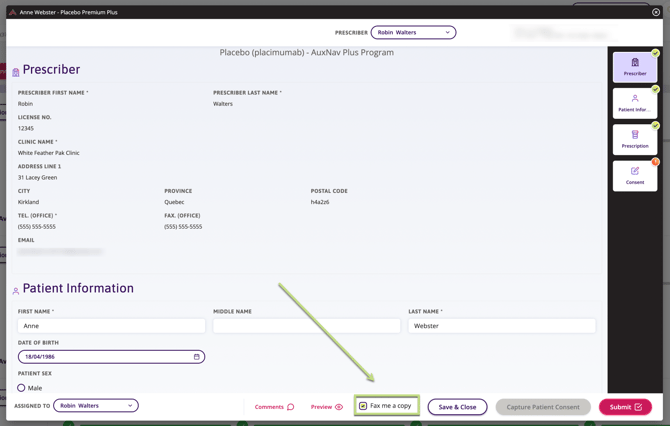
 **NOTE** You can find the fax number the e-fax will be sent to by hovering over the **Fax Me a Copy** checkbox. The fax number that displays is the one associated with the prescriber Auxita profile or their facility.
Please note that if there is no prescriber or facility fax number, the checkbox will not be enabled.

 **NOTE** Once **Fax Me a Copy** is selected the checkbox will be selected by default, for all future forms.
#### **Successful Fax**
- The form is sent automatically to the prescriber’s fax number
- No further action is required
- Office staff can upload the document to the EMR
#### **Failed Fax**
- A notification appears on the Home page
- The system will automatically attempt to resend the fax until successful
 **NOTE** If a fax fails to transmit, a notification is initiated on Auxita's backend to resend the fax. The notification will be triggered once the fax has been sent successfully.


- [Getting Started](https://help.auxita.com/getting-started?hsLang=en-ca)
- [Healthcare Providers & Prescribers](https://help.auxita.com/healthcare-providers-prescribers?hsLang=en-ca#main-content)
- [General](https://help.auxita.com/healthcare-providers-prescribers?hsLang=en-ca#general)
- [Enrolment](https://help.auxita.com/healthcare-providers-prescribers?hsLang=en-ca#enrolment)
- [Documents](https://help.auxita.com/healthcare-providers-prescribers?hsLang=en-ca#documents)
- [Referral Enrolments](https://help.auxita.com/healthcare-providers-prescribers?hsLang=en-ca#referral-enrolments)
- [Patient Management](https://help.auxita.com/healthcare-providers-prescribers?hsLang=en-ca#patient-management)
- [Messaging](https://help.auxita.com/healthcare-providers-prescribers?hsLang=en-ca#messaging)
- [Premium Features](https://help.auxita.com/healthcare-providers-prescribers?hsLang=en-ca#premium-features)
- [Patient Support Programs](https://help.auxita.com/patient-support-programs?hsLang=en-ca#main-content)
- [General](https://help.auxita.com/patient-support-programs?hsLang=en-ca#general)
- [Prior Authorizations](https://help.auxita.com/patient-support-programs?hsLang=en-ca#prior-authorizations)
- [Pharmacy](https://help.auxita.com/pharmacy?hsLang=en-ca#main-content)
- [Appointments/Scheduling](https://help.auxita.com/pharmacy?hsLang=en-ca#appointments-scheduling)
- [Patients](https://help.auxita.com/patients?hsLang=en-ca)
- [Account & Settings](https://help.auxita.com/account-settings?hsLang=en-ca#main-content)
- [Integrations](https://help.auxita.com/account-settings?hsLang=en-ca#integrations)
- [Additional Forms](https://help.auxita.com/additional-forms?hsLang=en-ca)
[](https://auxita.com)
##### **Taking care of healthcare.**
Auxita’s digital platform seamlessly and securely connects physicians, patients, insurance providers, and patient support programs together –
reducing administrative burdens and empowering medical practices to deliver care faster and more efficiently to patients.