
User groups allow you to assign cases or tasks to multiple users at once, rather than selecting a single individual.
All users included in the user group will have access to the assigned item, helping ensure coverage and reduce delays due to individual availability.
 NOTE User group notifications can be configured in two ways:
- Each user in the group receives a notification based on their individual notification settings.
- Only the shared inbox email configured in Platform Admin receives the notification.
Steps to reassign a Form to a user group
-
Open the form where the assignment is required.
-
Select the appropriate user group from the Assigned To list.
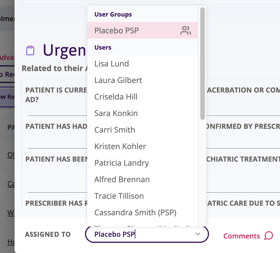
-
Click Save and Close or Advance/Complete to save the form to apply the assignment.
 TIP Once assigned to a user group, the case or task will be accessible to all users within that group and can be actioned by any member.