
This section is similar to the Programs section; however, it provides details for a single program.
It provides an overview of
- Total enrolments in the program.
- Status Table showing a filtered list of only enrolments and Reimbursements for the selected program.
- A list of patients enrolled in the selected program.
- The program's contact information.

There are multiple ways to access the Program Details section
From the programs section:
- Use the menu column on the left side of your screen.
- Choose Programs.
- Select Patient Support Programs from the tabs along the top.
- Click on the specific program name in the list.
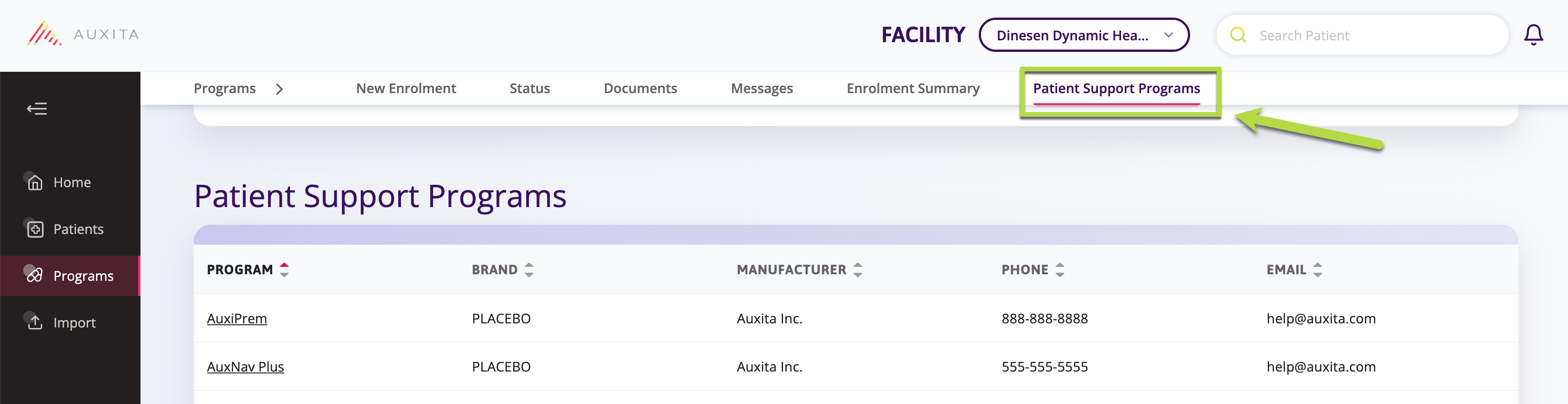
 TIP Easily find the program you are looking for by clicking on the column headings to sort by program name, brand, manufacturer, etc.
From the patient's profile
- Open the patient’s profile.
- Click on the program logo that appears in the Program Overview section.

 NOTE This section will only appear on a patient’s profile once they are enrolled or in the process of being enrolled into a program.